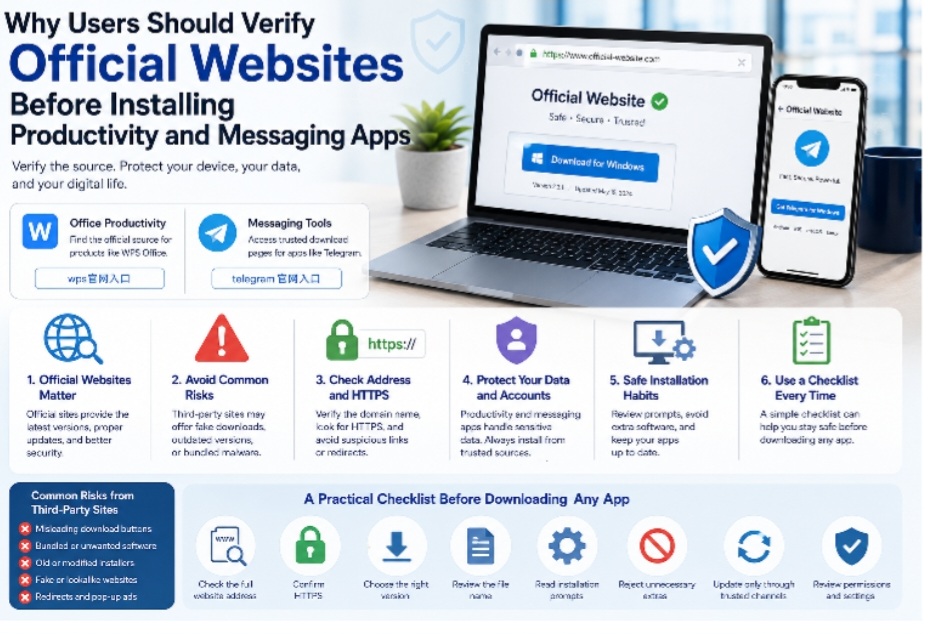
Installing software has become a normal part of daily digital life. People download productivity tools for documents, spreadsheets, and presentations. They also install messaging apps for team communication, private chats, online communities, and cross-device conversations. Because these apps often handle personal data, files, contacts, and account information, users should be careful before downloading or installing anything.
One of the most important safety habits is verifying the official website before installation. A familiar software name does not always mean the download source is safe. Search results, ads, mirror sites, third-party download pages, and imitation domains can make it difficult for users to identify the correct source. A few simple checks can help users avoid outdated installers, modified packages, fake download buttons, and unnecessary security risks.
Why Official Websites Matter Before Installing Software
Official websites are usually the safest starting point for downloading software. They are more likely to provide the latest version, accurate platform options, clear installation instructions, and trusted update paths. When users download from an official source, they reduce the chance of installing files that have been modified, bundled, or repackaged by a third party.
This matters especially for productivity and messaging apps. Productivity software may access local documents, cloud files, PDFs, spreadsheets, and business information. Messaging apps may access contacts, chat history, shared files, notifications, and linked devices. If the installer comes from an unreliable source, the risk is not limited to the app itself. It can affect the user’s documents, account security, and device environment.
Official sources also make troubleshooting easier. If a user installs the correct version from the right source, updates, compatibility checks, and support information are usually more reliable.
Common Risks From Third-Party Download Pages
Third-party download pages are not always dangerous, but they require caution. Some may simply list software information, while others may host outdated files or use confusing download layouts. A user may visit a page expecting one app but accidentally click an advertisement or unrelated installer.
Common risks include misleading “Download Now” buttons, extra software bundled into installers, old app versions, unclear file names, and redirect chains that send users to unrelated pages. Some websites may also ask users to install a separate downloader before getting the actual software. This adds unnecessary risk and makes it harder to know what is being installed.
Users should also be careful with pages that display too many pop-ups, force notification permissions, or require unrelated browser extensions. A trustworthy download source should make the process clear, not confusing.
How Users Can Check Website Addresses
The website address is one of the first things users should examine. A safe download process starts with checking the domain name carefully. Fake or imitation websites often use small spelling changes, extra words, unusual hyphens, or domain extensions that look similar to a real brand.
Users should not rely only on page design. A fake website may copy logos, colors, buttons, and layout from a well-known product. Instead, users should look at the full address in the browser. If the domain looks unfamiliar or includes unnecessary words, it is better to pause and verify before downloading.
For productivity software, users often search for official pages when they need a clean installation source. A guide or resource related to wps官网入口 can help users understand why website verification matters when looking for office software information. The key is to confirm the correct source before trusting any download button.
Why HTTPS Is Important, But Not Enough
Users should also check whether the website uses HTTPS. A secure connection helps protect the data exchanged between the user and the website. Most modern browsers show a lock icon when the connection is encrypted.
However, HTTPS alone does not prove that a website is official. Many fake or low-quality websites can also use HTTPS. Users should treat HTTPS as one part of the verification process, not the only signal. A website should have a secure connection, a clear domain name, consistent branding, useful support information, and a reasonable download path.
If a page uses HTTPS but still shows suspicious ads, confusing buttons, or strange redirects, users should remain cautious.
Why Productivity Apps Need Source Verification
Productivity apps are often used for important work. Users may open contracts, reports, invoices, presentations, spreadsheets, resumes, school documents, or internal company files. Because these files may include sensitive information, the software used to manage them should come from a trusted source.
A modified or outdated installer can create compatibility issues and security concerns. It may not support current document formats correctly. It may include unnecessary components. It may also make updates more difficult later.
Before installing productivity software, users should check the platform version, system requirements, file size, and installation prompts. If the download page does not clearly explain whether the software is for Windows, macOS, Android, or iOS, users should be careful.
Why Messaging Apps Need Source Verification
Messaging apps also require careful source checking. These apps may be linked to phone numbers, email addresses, contacts, private messages, groups, channels, and shared media. If a user installs a fake or unofficial version, account security may be affected.
Messaging apps are also commonly discussed in online communities, forums, and social media posts. Users may find download links from strangers or unofficial groups. This can be risky, especially when a link leads to a file instead of a recognized website or app store.
For users searching for official website guidance around messaging tools, a resource related to telegram 官网入口 can be useful for understanding how official access points and safe download habits fit together. Users should always verify the source before installing any desktop or mobile communication app.
Desktop Installation Habits for Windows Users
Windows users should follow a careful installation routine. First, they should download software from a trusted source and save the file in a known folder. Next, they should check the file name and confirm that it matches the expected app and version. If the file name contains random characters or looks unrelated to the software, users should stop and verify again.
During installation, users should read each prompt carefully. Some installers may ask to change browser settings, add extra tools, enable startup behavior, or install optional components. Users should only allow what they need.
After installation, users should open the app from the Start menu or official shortcut, not from random downloaded files. They should also delete duplicate installers and keep their download folder organized. This reduces the chance of accidentally running the wrong file later.
Account and Permission Checks After Installation
Verifying the download source is only the first step. After installing productivity or messaging apps, users should review settings and permissions. For office tools, this may include file storage location, cloud sync settings, default file associations, and update preferences. For messaging apps, this may include notifications, linked devices, privacy settings, two-step verification, and contact visibility.
Users should avoid granting permissions that do not match the app’s purpose. A messaging app may need notification access, but it should not request unrelated permissions without explanation. A productivity app may need file access, but users should still understand where documents are stored and synced.
Regular reviews are also useful. Users should check active sessions, update settings, and installed app versions from time to time.
A Practical Checklist Before Downloading Any App
Before installing any productivity or messaging app, users can follow a simple checklist:
Check the full website address.
Confirm that the site uses HTTPS.
Avoid pages with misleading download buttons.
Choose the correct version for the device.
Review the file name before running the installer.
Read installation prompts carefully.
Reject unnecessary bundled software or extensions.
Update apps only through trusted channels.
Review permissions and account settings after installation.
This checklist does not require advanced technical knowledge, but it can prevent many common mistakes.
Conclusion
Productivity and messaging apps are essential for modern work and communication, but users should not install them without checking the source. Official website verification helps reduce the risk of outdated installers, modified files, confusing download pages, and unsafe setup practices.
By checking the domain name, using HTTPS as one signal, avoiding suspicious download buttons, reviewing installation prompts, and managing permissions after setup, users can build safer software habits. Whether installing an office tool or a communication app, the safest approach is to verify first and install carefully.


You must be logged in to post a comment.